How to add a comment to a photo on Android
A photo without a note is hard to place a year later: whose birthday was it, which cottage, what was that dish? A few words on the photo fix that. Android has no single built-in place for them, so here are the two ways that work, and what is different about each.
In your gallery app
Many galleries, including Google Photos, have a description field in a photo’s details. Open the photo, swipe up or tap the info icon, and tap “Add description” (the wording differs between apps). It is quick for one photo. Where the text is stored depends on the app: often it stays in that app or its cloud, so it may not follow the photo when you copy the file to a computer or switch to another gallery.
With Snapisodes
- Open Snapisodes Allow access to photos and videos when the app asks. No account or sign-up is needed.
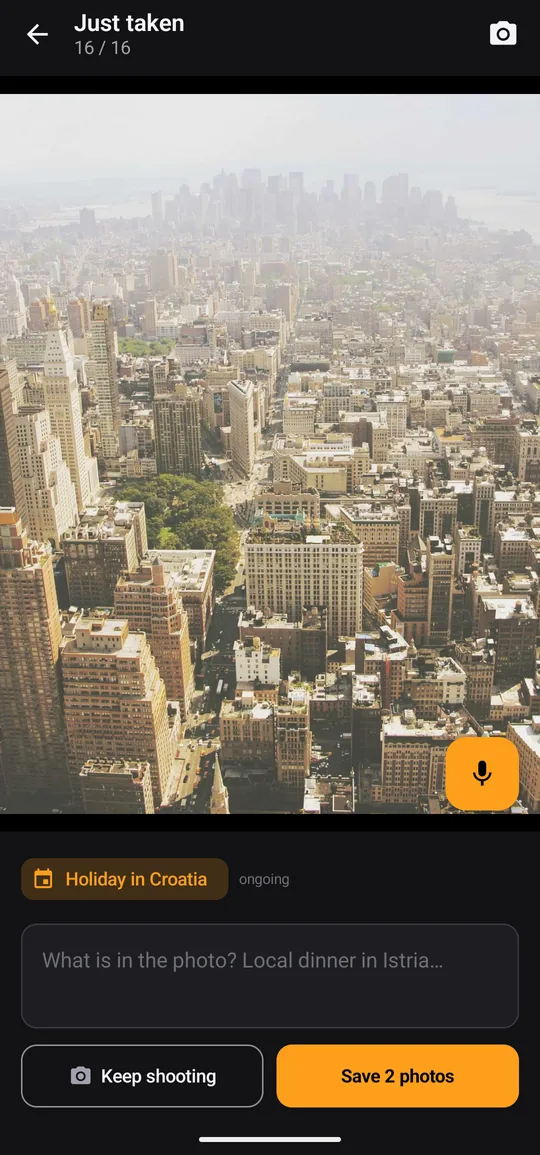
- Take a photo or open one Shoot with your usual camera and open the new photo in the app, or pick an older one in the gallery.
- Say or type a few words Tap the microphone and say what the photo shows, or type into the comment field. Dictation uses your phone’s own speech recognition.
- Save it Confirm the text. The comment is kept in the app and its backups; your photo file is not changed. Export XMP for computer makes it readable for Lightroom, digiKam or darktable.
- Find it again The comment appears under the photo, and the search in the gallery finds photos by episode name or by comment.
Good to know
- Snapisodes never changes the photo file, in any format. The app keeps the comment and can export it as XMP files for Lightroom, digiKam or darktable.
- The comment is part of the app’s own records, which are included in your Android backup.
- After the 14-day trial of everything, the free version allows 20 newly commented photos a month, with comments up to 20 characters. Pro, a one-time purchase, removes both limits.
- There are no ads and nothing is sent to us: the app has no server of its own.

Add your first comment today
14 days of Pro free, no account, no ads.